
How to Manage Team Member Permissions
Managing Team Member Permissions
We’ve introduced an exciting new feature that gives you control over assigning roles and permissions to your team members. Whether you need to manage payout settings, add users, or give someone admin rights, you now have the flexibility to make it happen—all with just a few clicks!
Why do property managers love this feature?
We think you will love this feature because it allows you to manage what your team can do within the platform. For example, if you want your finance team members to be able to transfer out your revenue, and only them, you now have the power to set that up with a few simple steps!
Access the Permissions Page
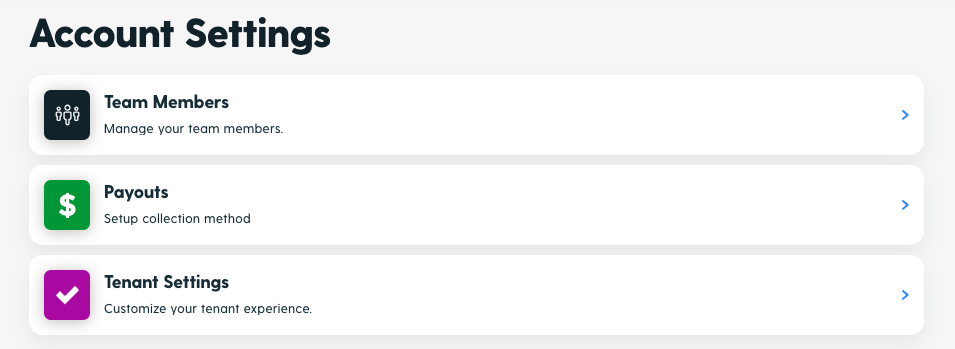
Head over to your settings. Select the “Team Members” tab. Here, you’ll find a list of all your team members and their current permissions.

Select the “Team Members” tab.
Here, you’ll find a list of all your team members and their current permissions.
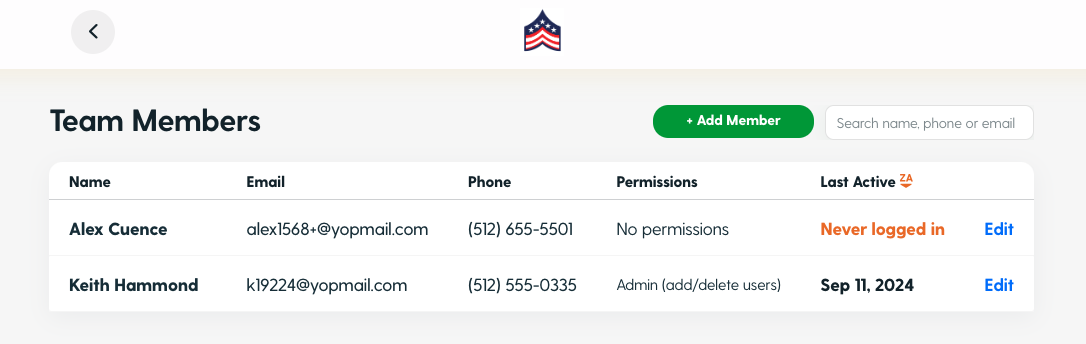
If you're an admin, you’re in charge! You can assign and update permissions for your team.
Click "Edit" next to a team member’s name and choose the permissions they need:
Payouts Access: Control over viewing and managing payout information.
Add/Delete Users: Allow team members to add or remove users from your group.
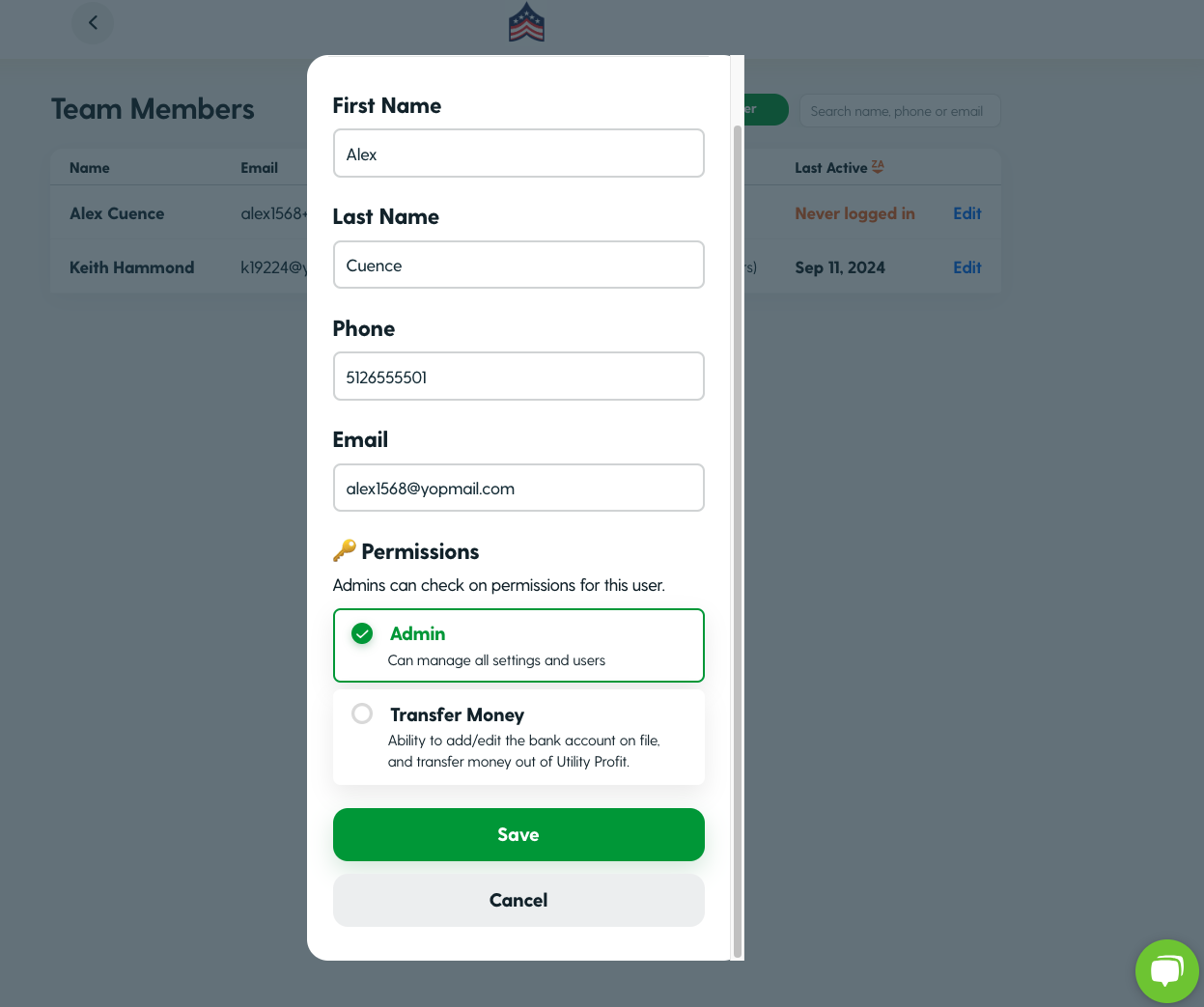
Click Save, once permissions have been selected.
Viewing Your Permissions
If you’re not an admin, don’t worry! You can still see the permissions assigned to you. If you need a permission to be enabled contact your admin.
Key Takeaways:
Admins have these permissions:
Can manage payouts.
Can add and delete team members.
Has the ability to give team members admin access.
If you're not an admin, you’ll see your available permissions. Ask an admin to enable any other permissions for you.
This new feature is designed to help you give permissions to the correct people on your team and, help you manage your ever evolving team. For any questions or assistance, our support team is here to help!