
Steps to Sync with Propertyware (5 minutes)
There are two ways you can start your sync with Propertyware for your Utility Profit platform.
When you first set up your account during onboarding you'll be prompted to integrate your software.
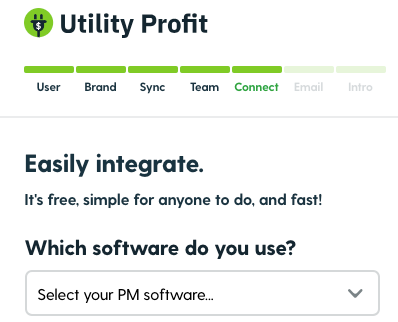
If you decide not to sync during onboarding you can still choose to do so once your platform is activated.
You'll see this notification above the Utility Activations dashboard if syncing is not set up.

Click "Activate Sync" and select Propertyware from the drop down menu.
Below we will discuss the steps to sync with Propertyware.
First, go to your Propertyware.
Create Report (2 minutes)
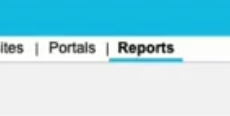
Click the tab on the top, far right “Reports”
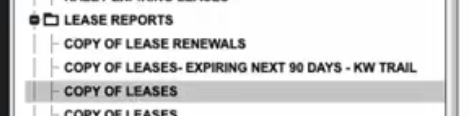
Search for “Copy of Leases” in the “Lease Reports” folder
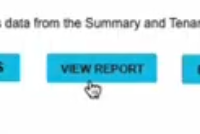
Click the blue “View Report” button
Click “Save As” (so we don’t change the original)

Choose “Custom Folder” radio button
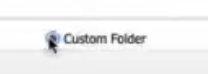
Rename to “Utility Profit”

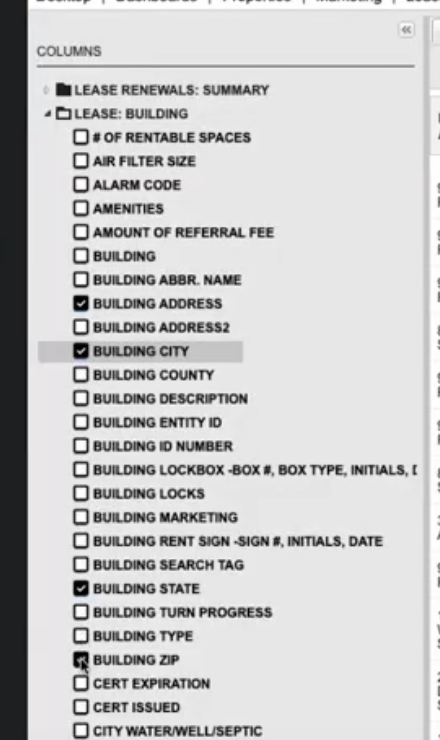
In the left column, check these on:
Expand “Lease: Building” folder
“Building Address”
“Building City”
“Building State”
“Building ZIP”
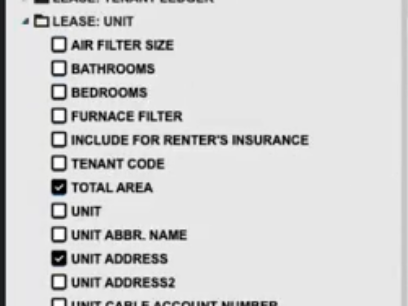
Expand “Lease: Unit” folder and check this one on:
“Unit Address”
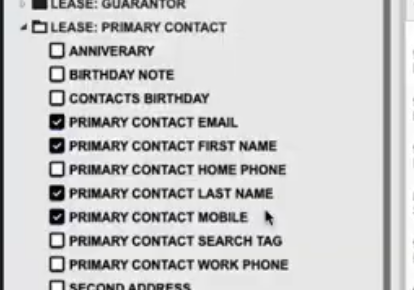
Expand “Lease: Primary Contact” folder and check all these on:
“Primary Contact Email”
“Primary Contact First Name”
“Primary Contact Last Name”
“Primary Contact Mobile”
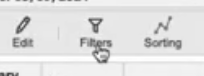
Click on the “Filters” icon on the top
Scroll down to “Custom Filters” at the bottom
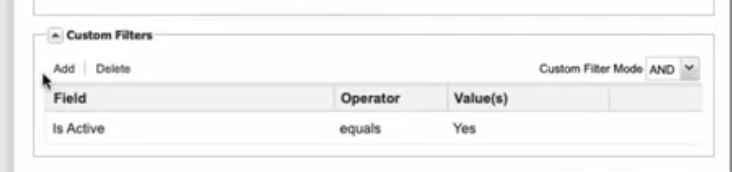
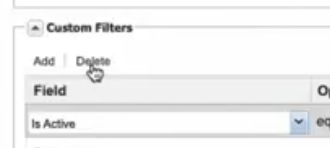
Click the “Is Active” row then click “Delete” above so there are no custom filters anymore.
Click “Add”
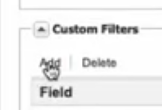
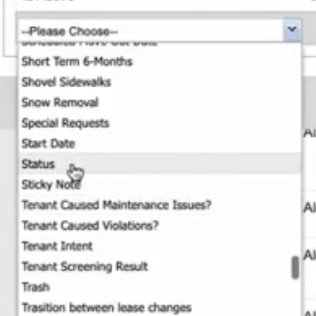
Choose dropdown “Status” then the next field is equals, then write “Draft” (see below)

Click "Apply"
Click “Save” icon on the top (Floppy Disk)
Schedule Report (1 minute)
Click “Email / Schedule” icon in the top center
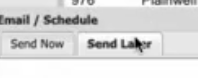
Tab to “Send Later”
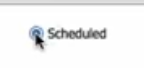
Choose “Scheduled” radio button
For Start Sending click today’s date
For Frequency set to “1” and "day(s)”

In the From choose “-- Account Admin --”

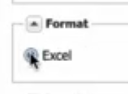
Format “Excel”
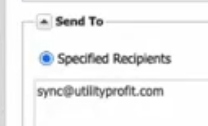
For Send To write sync@utilityprofit.com
The Message can say anything (Example: “Hello”)
Click Save!
Validate the Report CSV
Navigate back to view the report you built
Click the "Email / Schedule" icon at the top
In the "Send Now" tab:
Format “Excel”
In the "Send To" section type your own email address.
Click the button "Send"
Check your email for the file (Propertyware may take a minute to deliver it). Download the file.
Once downloaded, use this Utility Profit page to the left, click "tap to upload" and choose your report CSV you just downloaded.
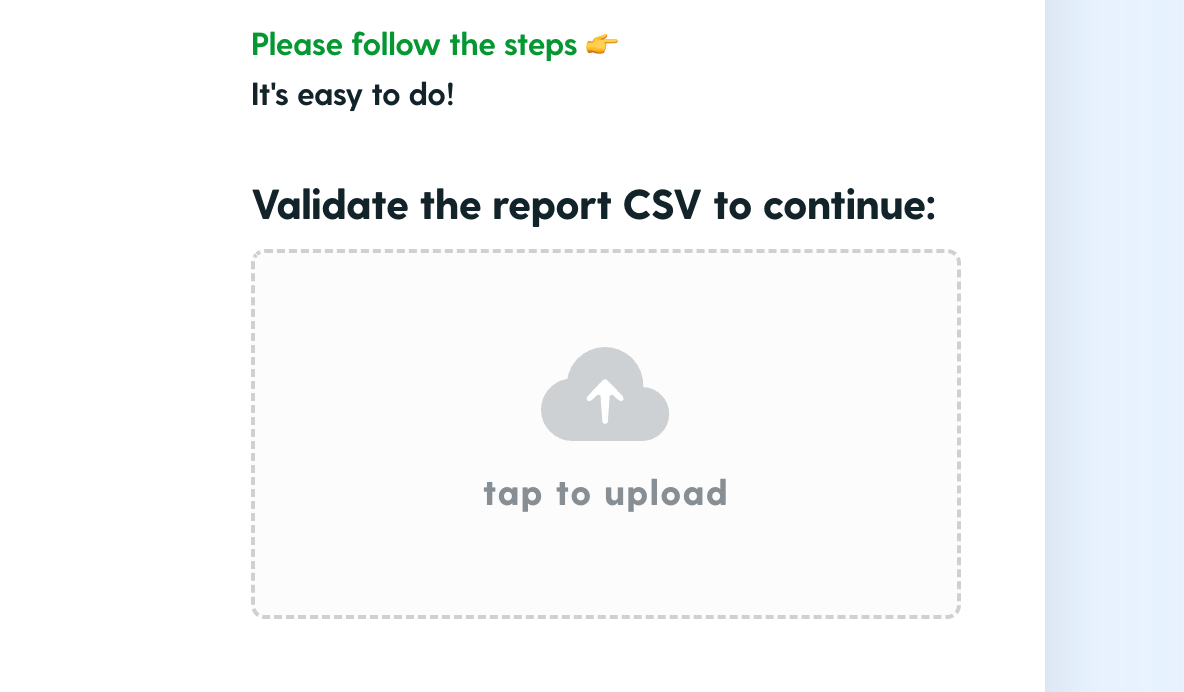
Your CSV must be validated to continue onboarding. If the CSV is not set up correctly, please make sure you have checked on all required fields we mentioned above. If you successfully fixed your CSV, remember to "Save" (Floppy Disk) on Propertyware so that you overwrite the previous failing report!
For live support, please email us at accountmanager@UtilityProfit.com (9am-5pm, Mon-Fri)
If your report CSV validates successfully, then you're done!!
Wohoo! 🎉
Tenants will now be automatically notified to use your utility setup tool.