How to Invite Team Members to Utility Profit
Inviting team members to your platform ensures everyone has the access they need to collaborate effectively and manage utility set-up tasks seamlessly.
With the new ability to assign roles and permissions, you can maintain control over who can view, edit, or manage specific areas of the platform.
This guide walks you through the simple steps to invite team members and introduces you to permissions you can set to streamline your operations.
Step 1: Login and Click the "Invite Team Member" Link
Easily access the "Invite Team Members" tool straight from your dashboard.

Step 2: Add Team Member Information and Set Permissions
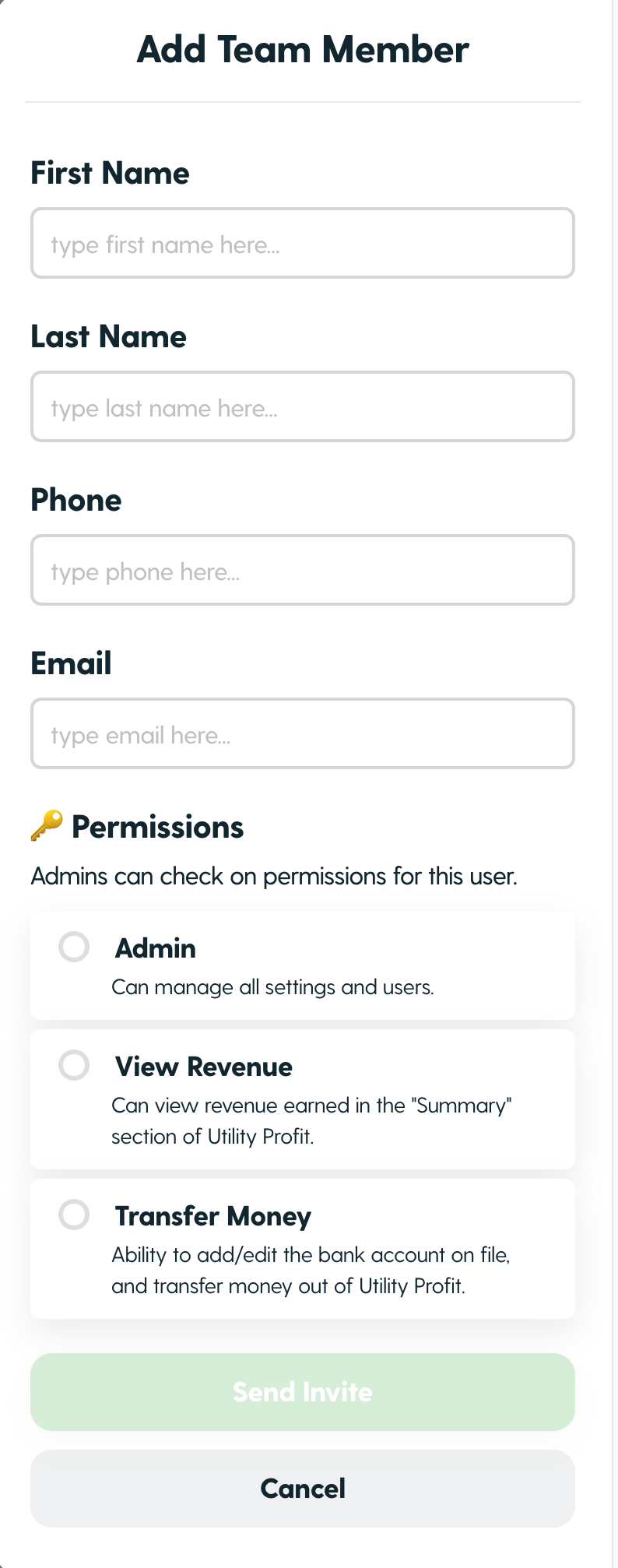
Click on "+ Add Member" in the Team Members settings page. Then enter your team members information and click "Send Invite".
Pro-tips when inviting a team member:
Double check all information is accurate (spelling errors are common)
Phone numbers need to be SMS Capable
As you fill in the information, you will be able to set permissions for your team member. To learn more about each permission check out our knowledge base articles below:
Step 3: Invited Team Member - Follow Step's to Set Up Account
The invited team member will receive an email to finish setting up their account.
Need to remove a team member?
Read more here on how remove a team member from your Utility Profit platform.
Common Questions
What if my team member does not receive an invite email?
If your team member has not received their invite email please do the following:
Have the team member check their spam/junk folder
Double-check the email address entered into your platform is correct
If they are unable to find it please reach out to your point of contact using the chat widget in your platform or via email.